
Summary
This page explains how to use the Hysopt product catalog to select components and load manufacturer data into your model. It covers automatic selection and manual selection by manufacturer, series, and part. It also explains how to review warnings and resolve unsuitable or unavailable results.
Catalog library
The Hysopt product catalog helps you select components quickly and accurately. It provides components from a range of manufacturers and loads their predefined parameters into your model.
The catalog supports two workflows:
-
Automatic component selection: Select a manufacturer and let the catalog algorithm select the best-fit component.
-
Retrieve an existing component: Select a specific catalog component to load its hydronic parameters into the model and represent the installed component digitally.
To use the product catalog, select a component in your Hysopt model.
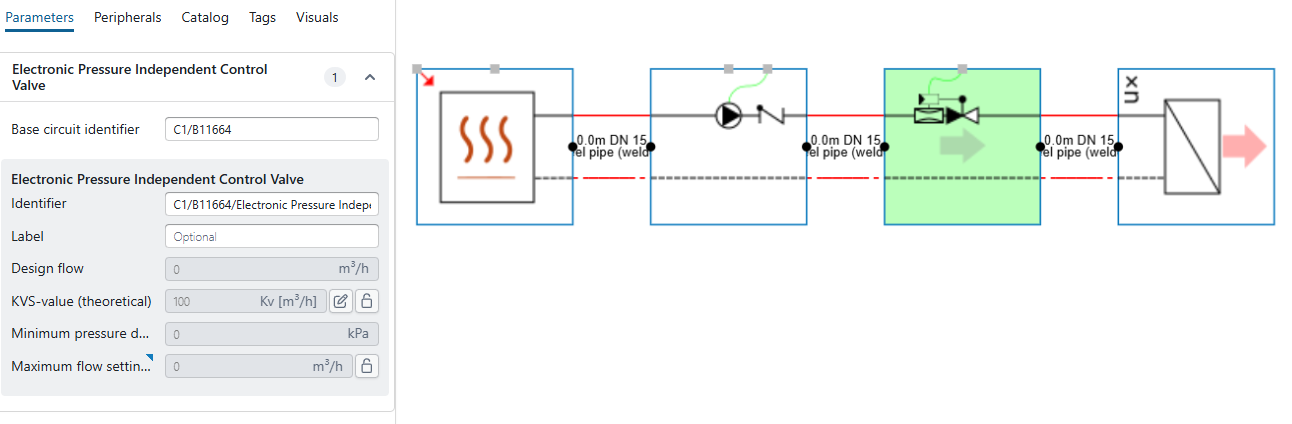
The Parameter library opens by default on the left. The Catalog library is the third library in the top-left menu. Select Catalog to open it.
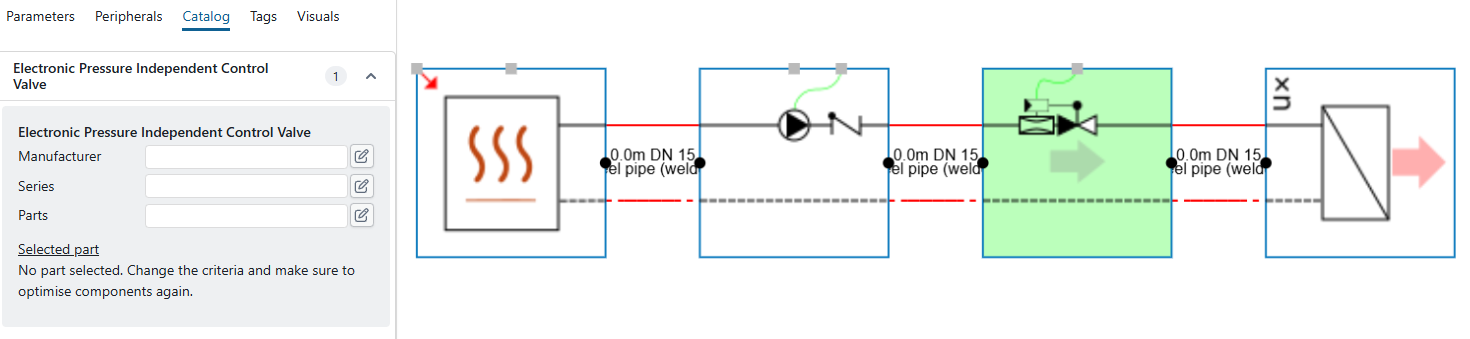
The selected component displays three catalog parameters: Manufacturer, Series, and Parts. If no component is selected, the parameter area indicates that no part is selected.
Manufacturer
Before selecting a component, select a manufacturer. Hysopt does not select components across different manufacturers. Select the pencil icon next to Manufacturer, then choose an available manufacturer. Do not select the link below the manufacturer name; it opens the manufacturer’s website. After you select a manufacturer, its name appears in the parameter field. You do not need to save this selection.
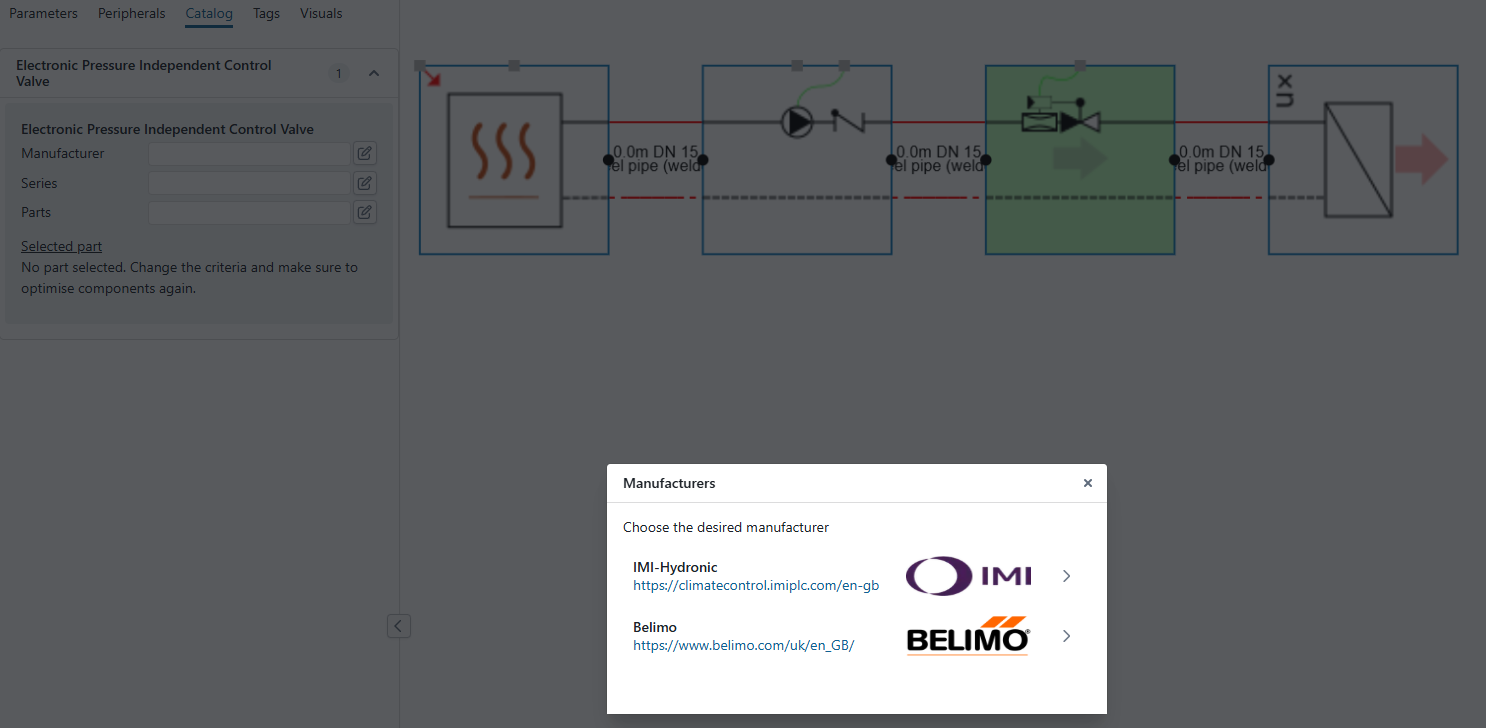
Manufacturers available in the catalog vary by component. Some manufacturers in your region may not be available. Review the available manufacturers for each component before making a selection.
For automatic component selection, selecting a manufacturer is sufficient. Select Optimise components to let Hysopt calculate the best-fit component, based on the manufacturer’s selection data. The selected part is not shown on the model canvas; it appears in the Catalog library.
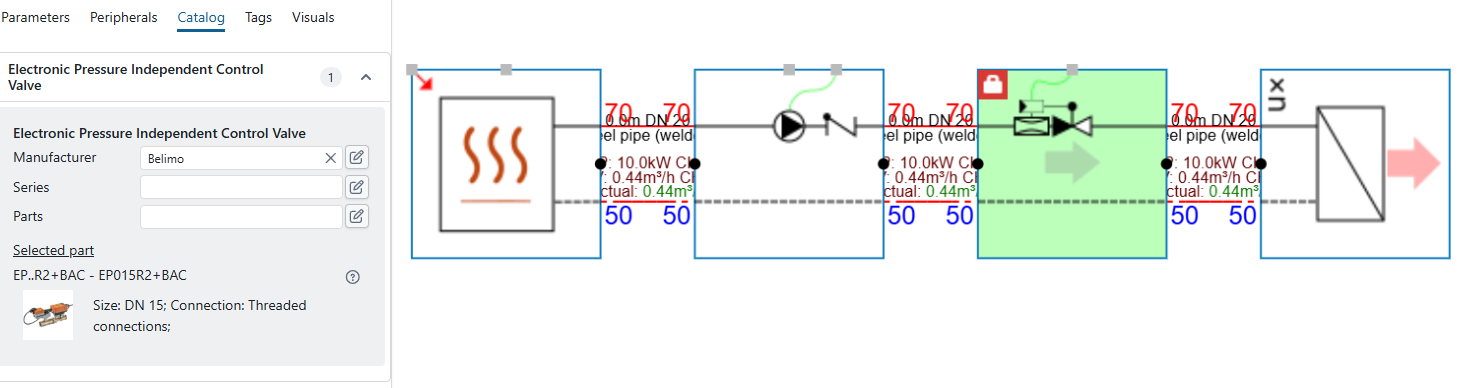
To view more information about the selected part, select the question-mark button next to it. The button opens the manufacturer’s official datasheet.
When you return to the Parameters library, Hysopt automatically fills in the parameters for the selected part. These values come from the manufacturer’s datasheet and represent the physical component more accurately than the generic values used without a catalog selection.
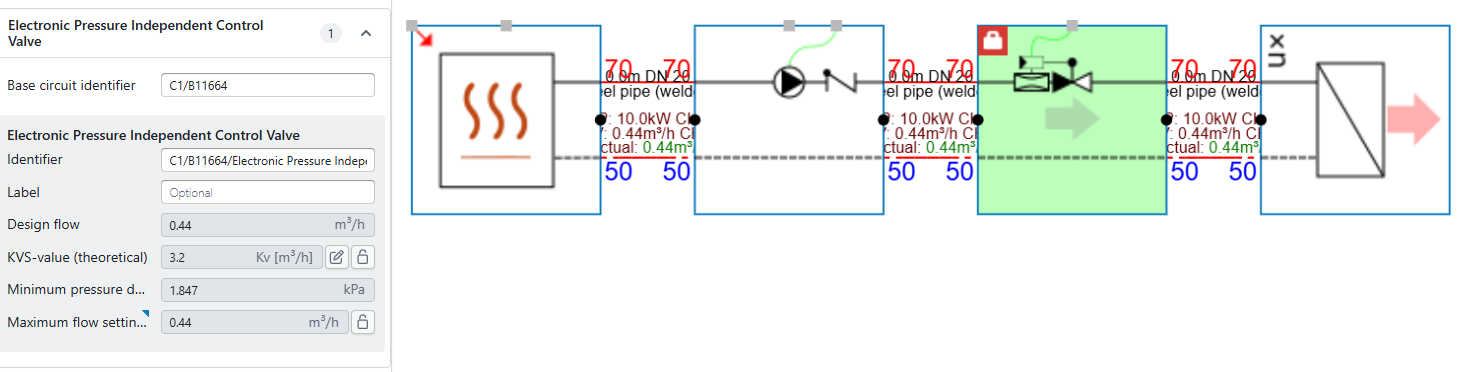
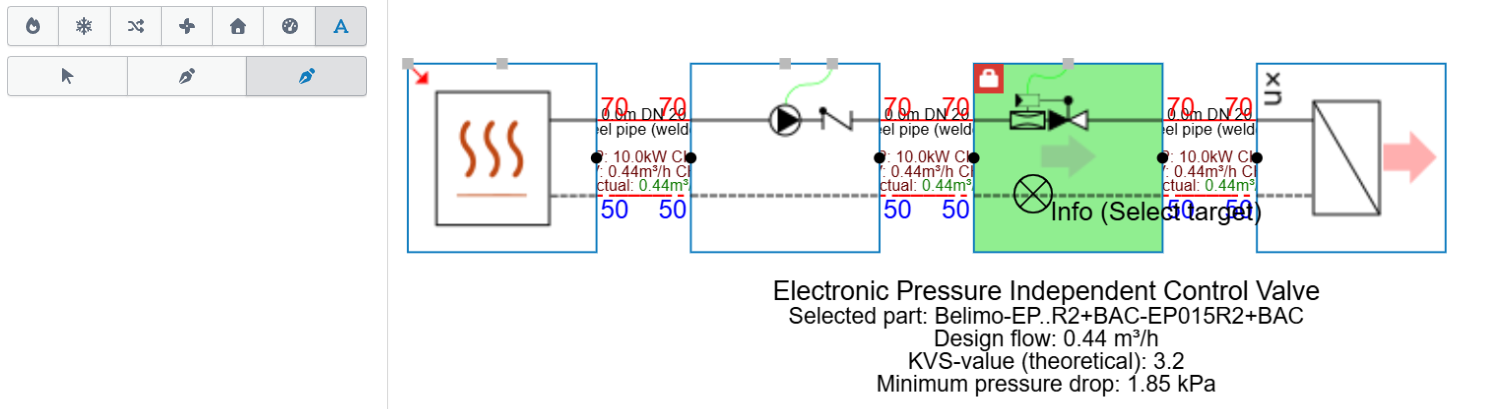
You can also display part information by adding a dynamic label to the component. Open the Text library and select the third button to insert a dynamic link. Then select the component on the Hysopt canvas to display its detailed parameters.
Series
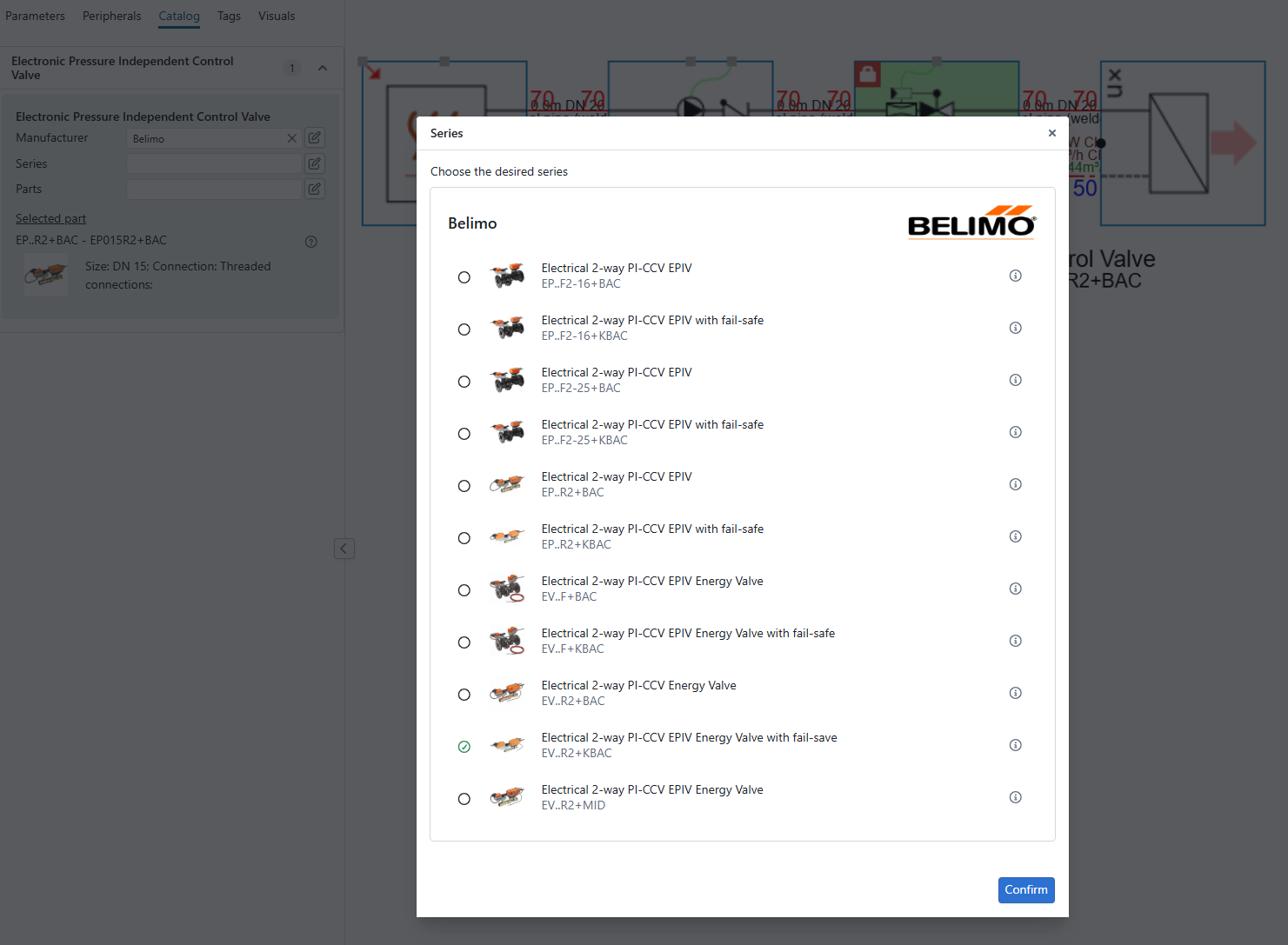
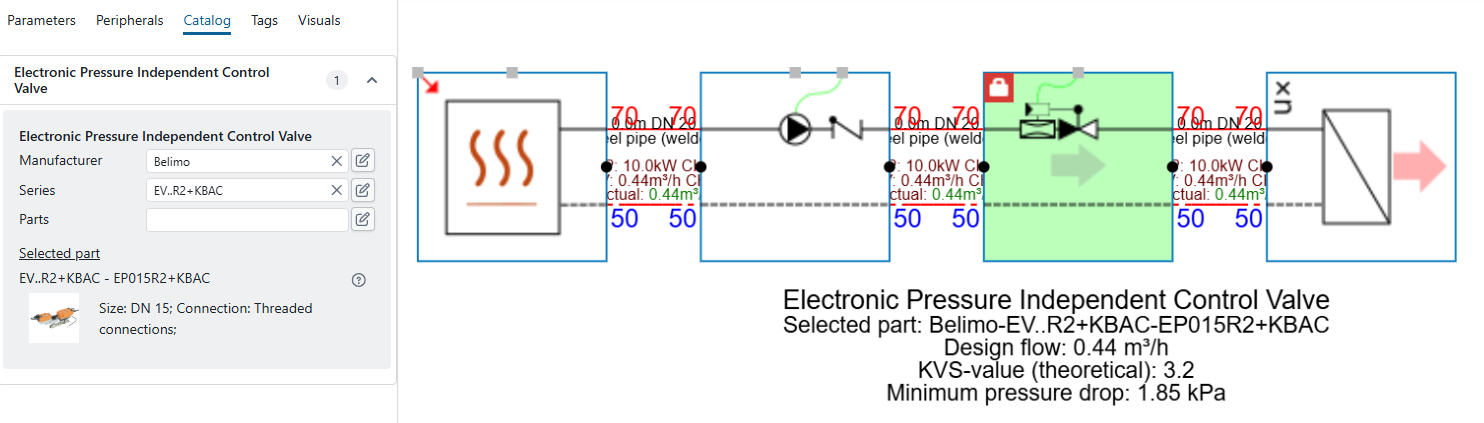
If you do not select a series, Hysopt searches through all available series for the selected manufacturer. To restrict the search, select the pencil icon next to Series, choose a series, and select Confirm. You do not need to save the selection. The selected series appears below the manufacturer.
Select Optimise components to let Hysopt select the best-fit part from the selected series.
Parts
Each series contains different parts. To select a specific part instead of allowing Hysopt to find the best-fit part, select the pencil icon next to Parts and choose the required part. You can filter the available parts by specification. After selecting a part, select Confirm. The selected part appears below the selected series in the parameter panel.
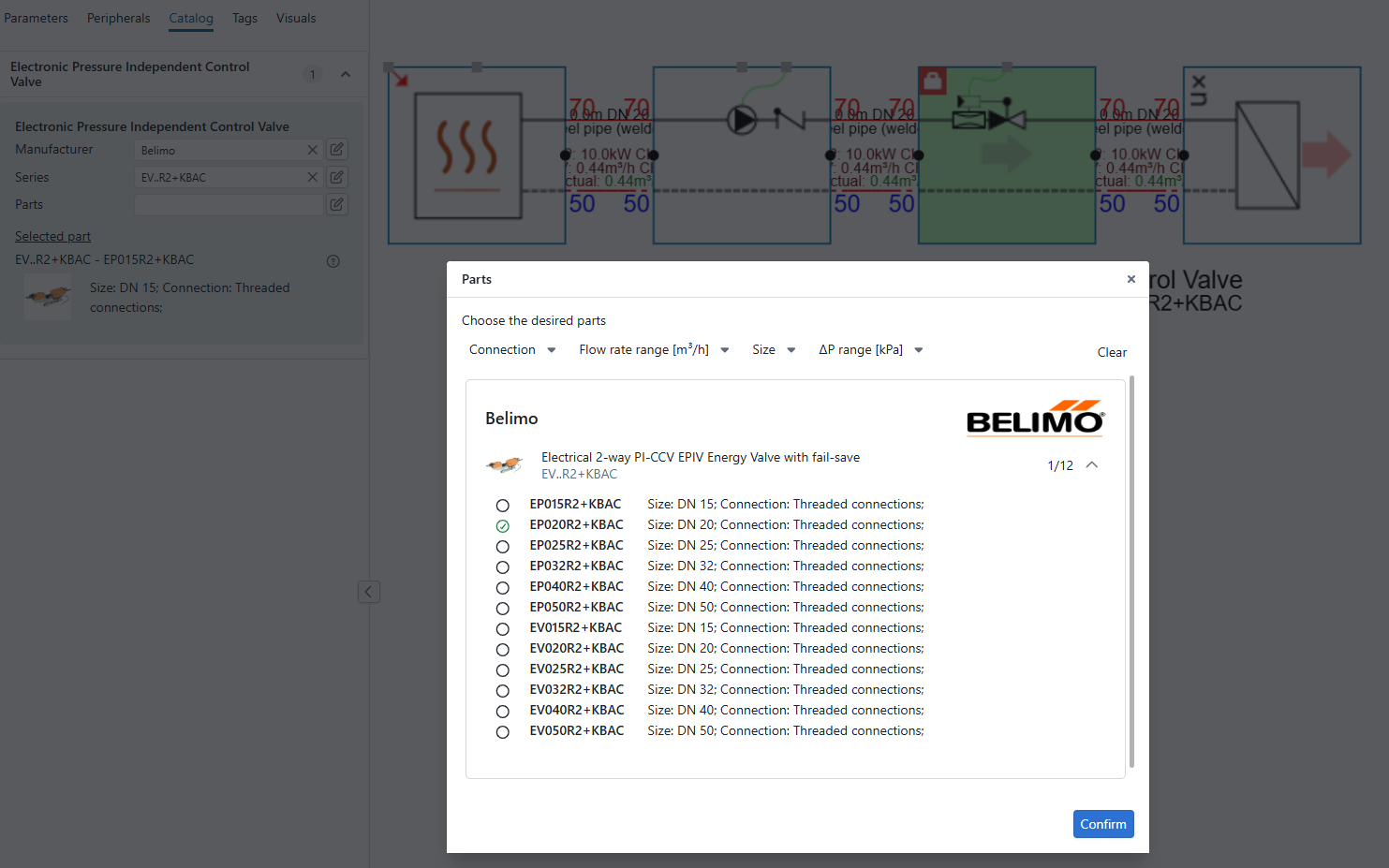
After selecting a part, its specifications may not appear immediately under Selected part. If another part was selected previously, its information remains visible until you select Optimise components.
Warnings
Hysopt may display warnings after a component selection when it cannot find an optimal solution. The software still returns a selected part, even if that part may not be suitable in practice. Always review the warnings before using the selected part.
The most common warning is shown below.
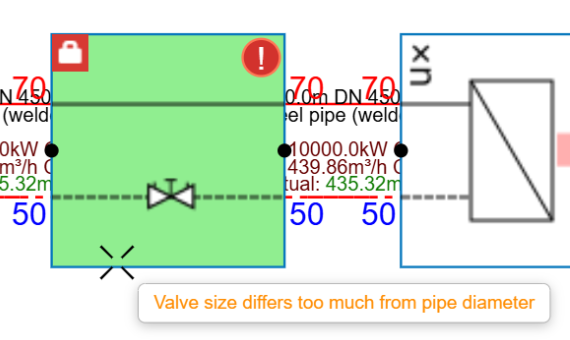
This warning appears when the selected component’s valve diameter differs from the pipe diameter by more than two sizes. Change the pipe size or try a similar part with a more suitable diameter.
Another common warning is shown below.
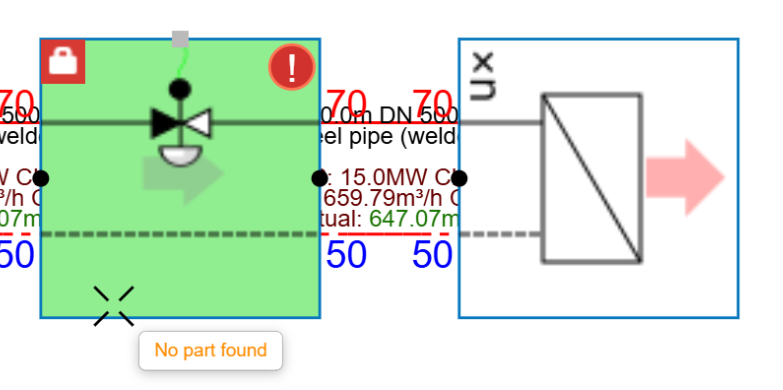
This warning appears when Hysopt cannot find an applicable result. The selected series may be incorrect, or the model conditions may be outside the component’s specifications. Try a different manufacturer or series, or adjust the model parameters.