Getting started
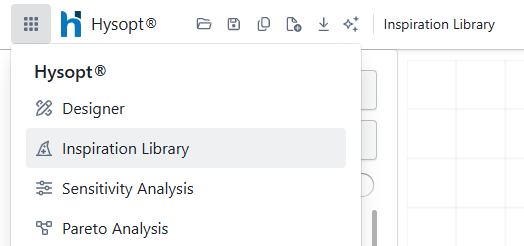
To open the Inspiration Library, click the nine-dot menu in the top-left corner of the screen. The menu shows Hysopt’s four core functionalities. Select Inspiration Library to open the Inspiration Library Wizard.
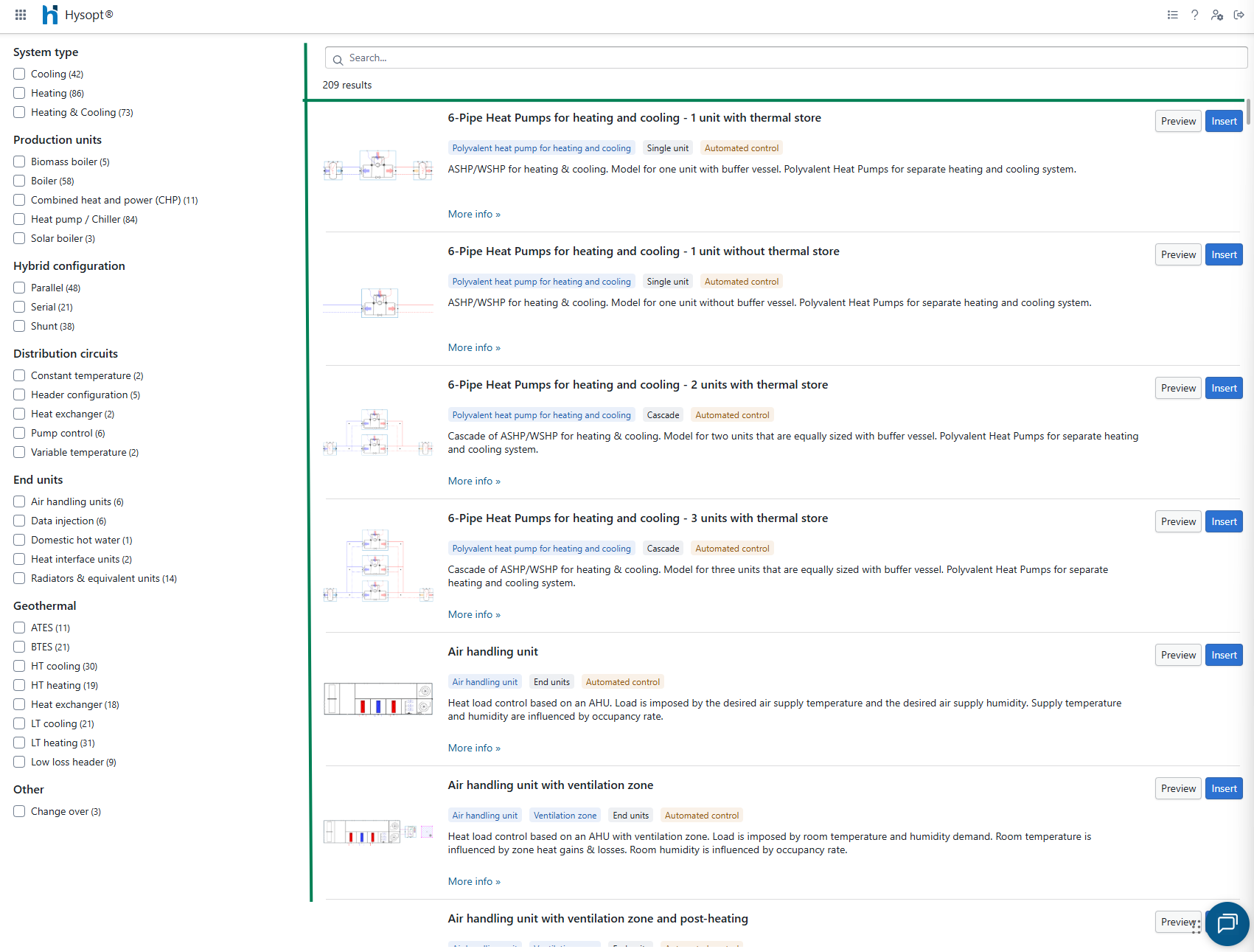
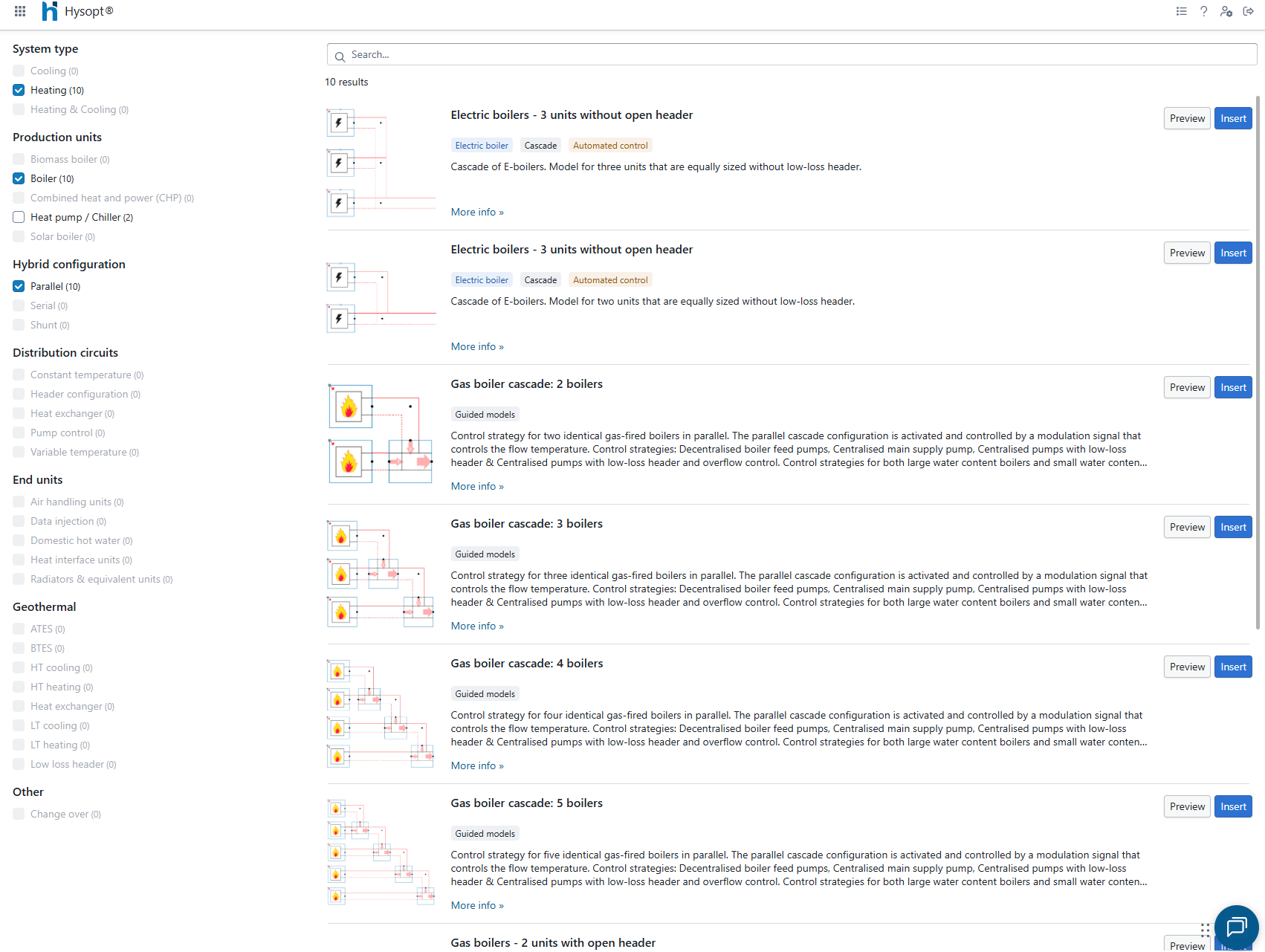
The Inspiration Library Wizard helps users quickly find the right template. It contains three main areas: filter boxes on the left, a search bar at the top and the available Hysopt templates on the right.
Filter boxes
Use the filter boxes to narrow down the list of templates. When a box is selected, the Wizard only shows templates that match that criterion. Select the filters that are relevant to your design concept to reduce the number of templates to review.
Search bar
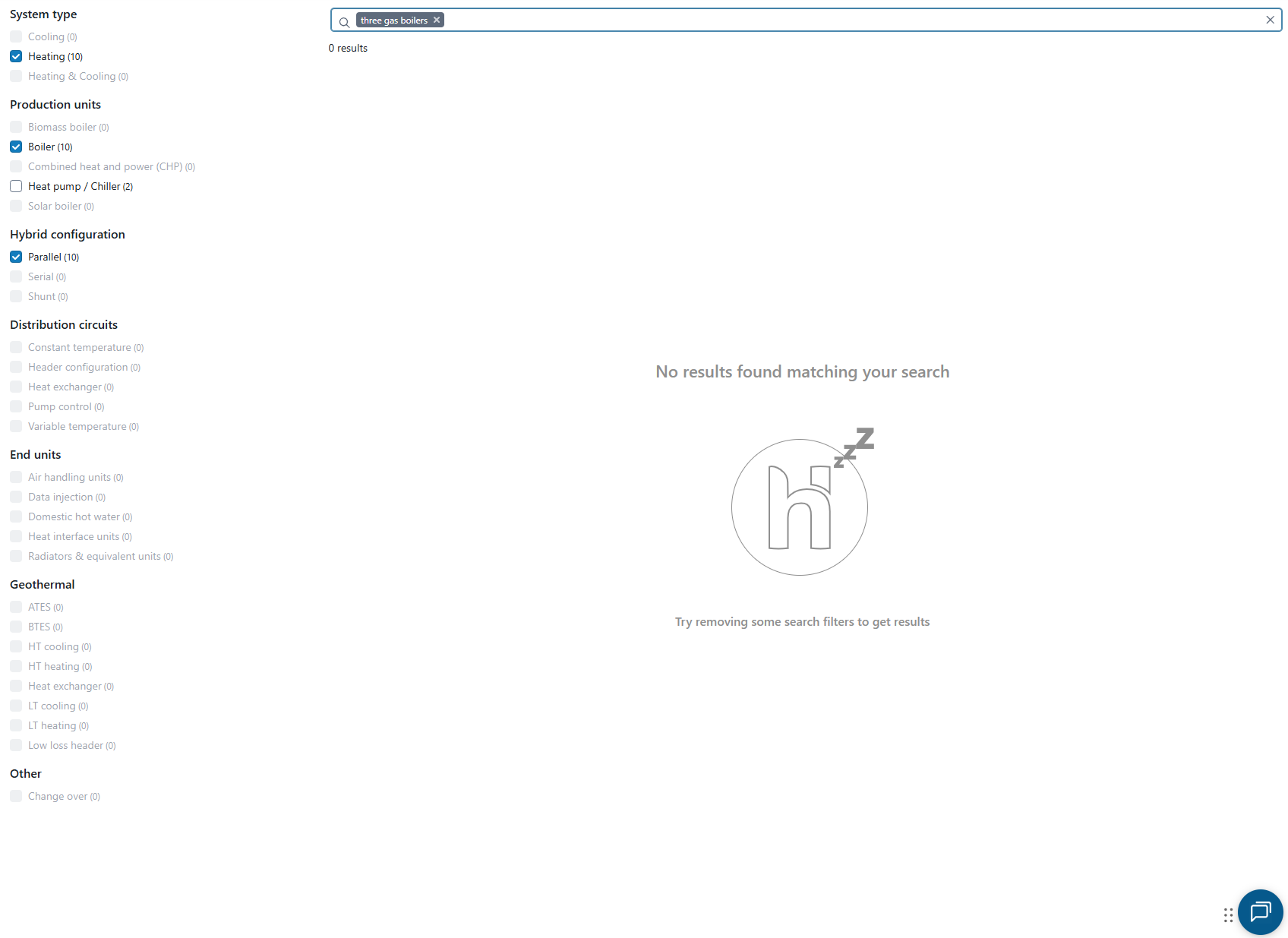
The search bar filters templates in the same way as the checkboxes, but allows the user to define the search term. Use it when the available filters are not specific enough.
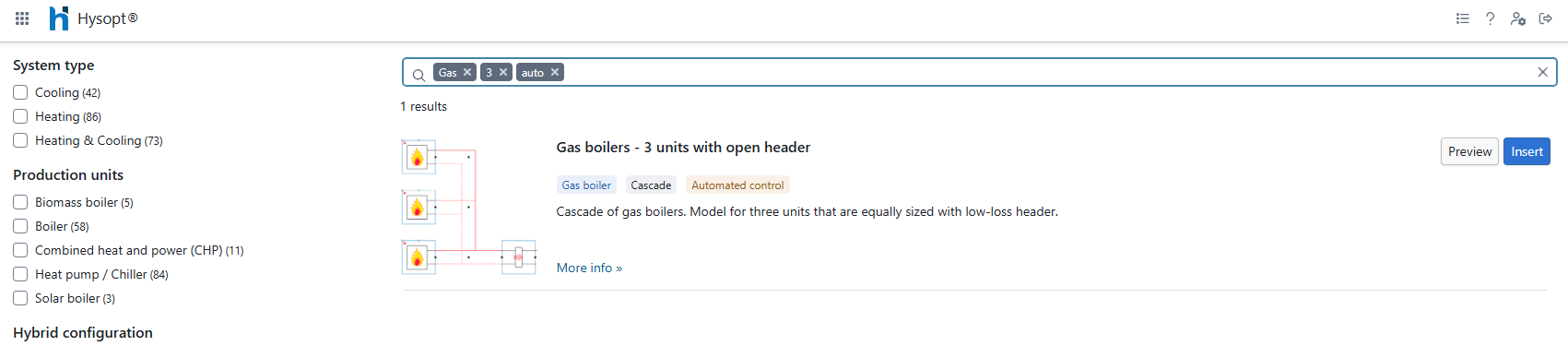
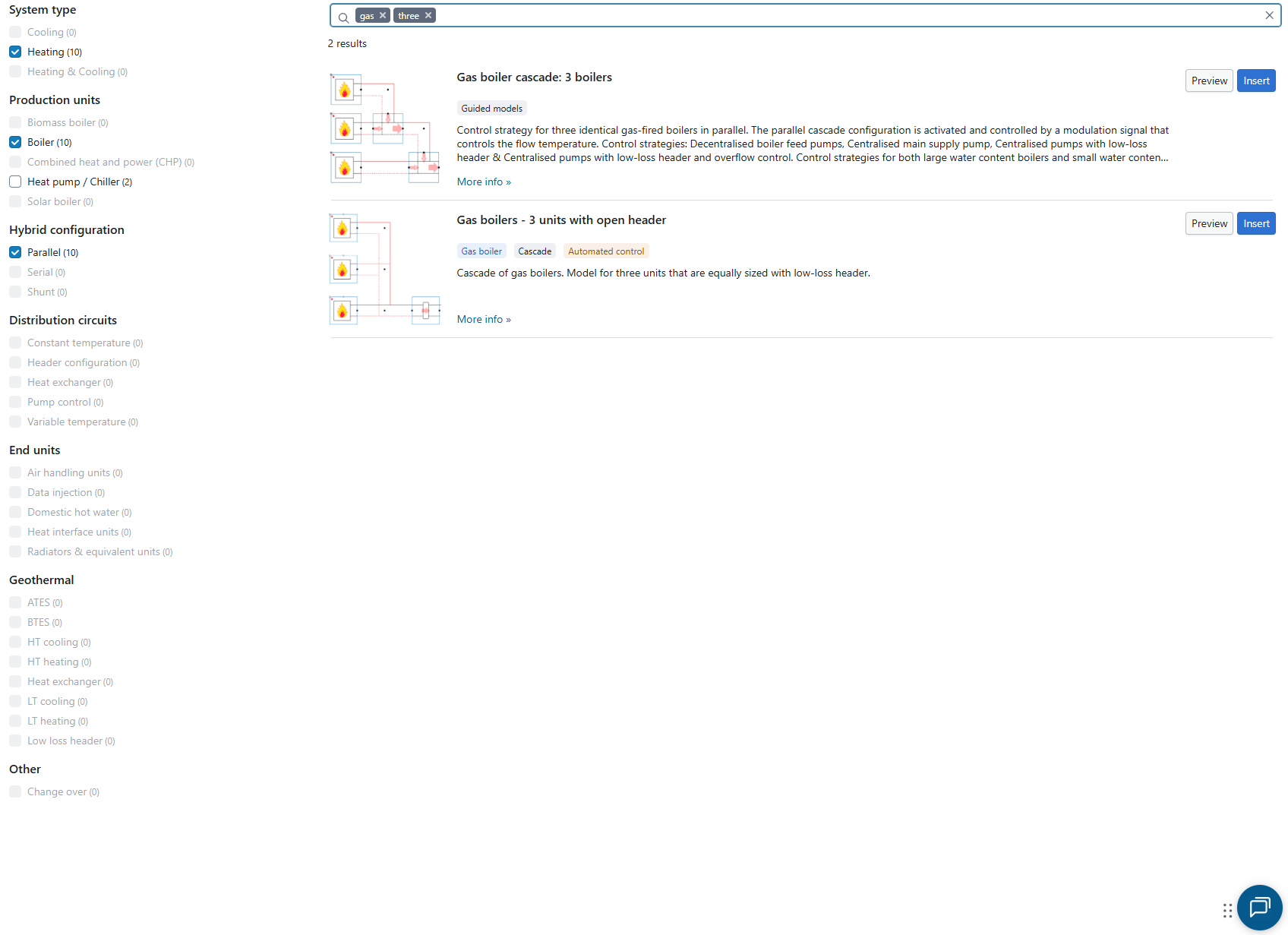
To use the search bar, type a search term and press Enter. The search is strict: spelling mistakes, abbreviations, and synonyms are not taken into account. For best results, search for short individual words rather than full descriptions. Multiple search terms can be combined. To remove a search term, click the cross icon next to it.
Hysopt templates
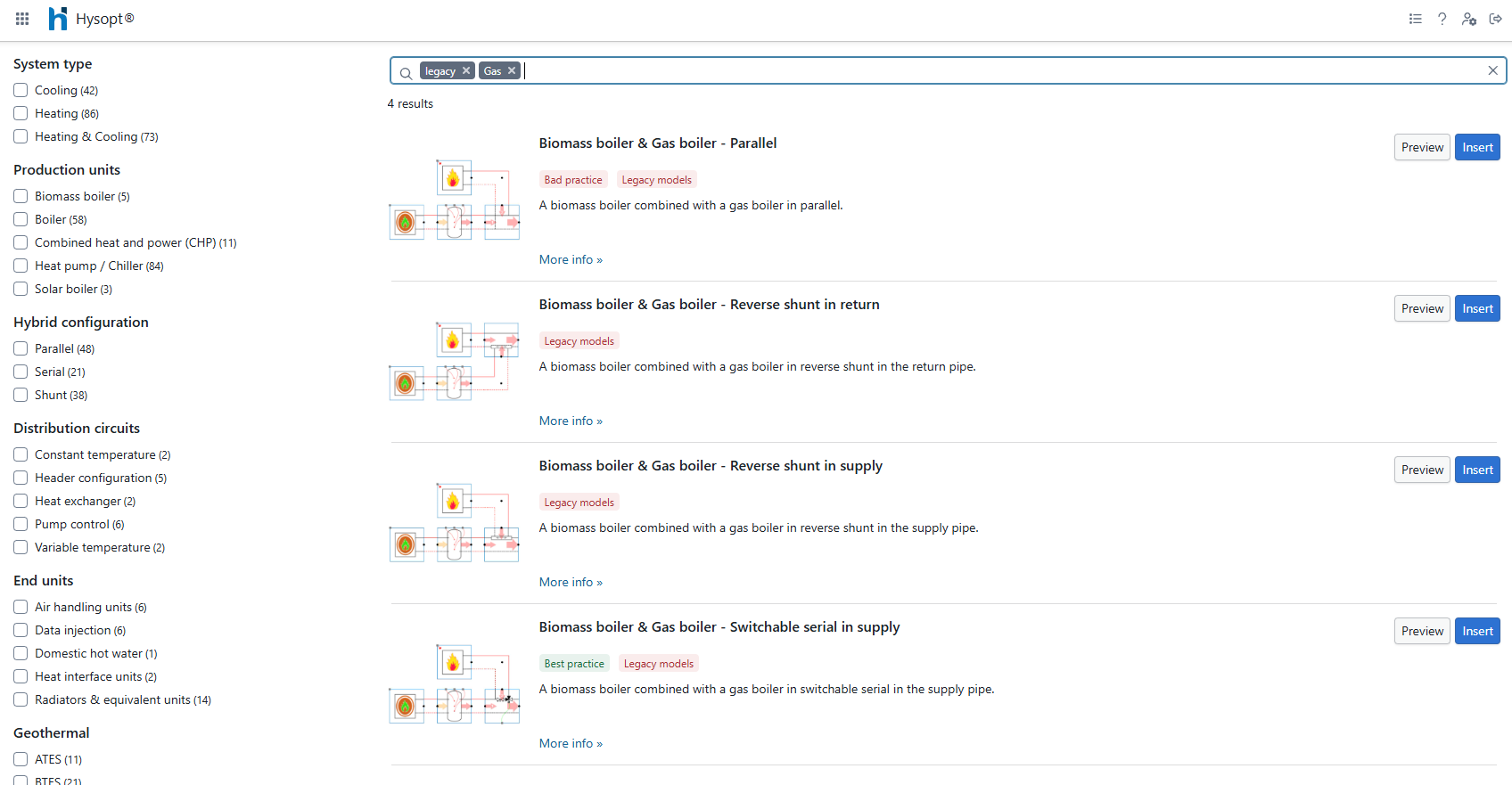
After filtering, the available templates are shown in the Wizard. Each template includes a name, conceptual image, short description and assigned tags. Click More info to open the related wiki page. These pages provide more detailed information about the template and guidance on how to use it.
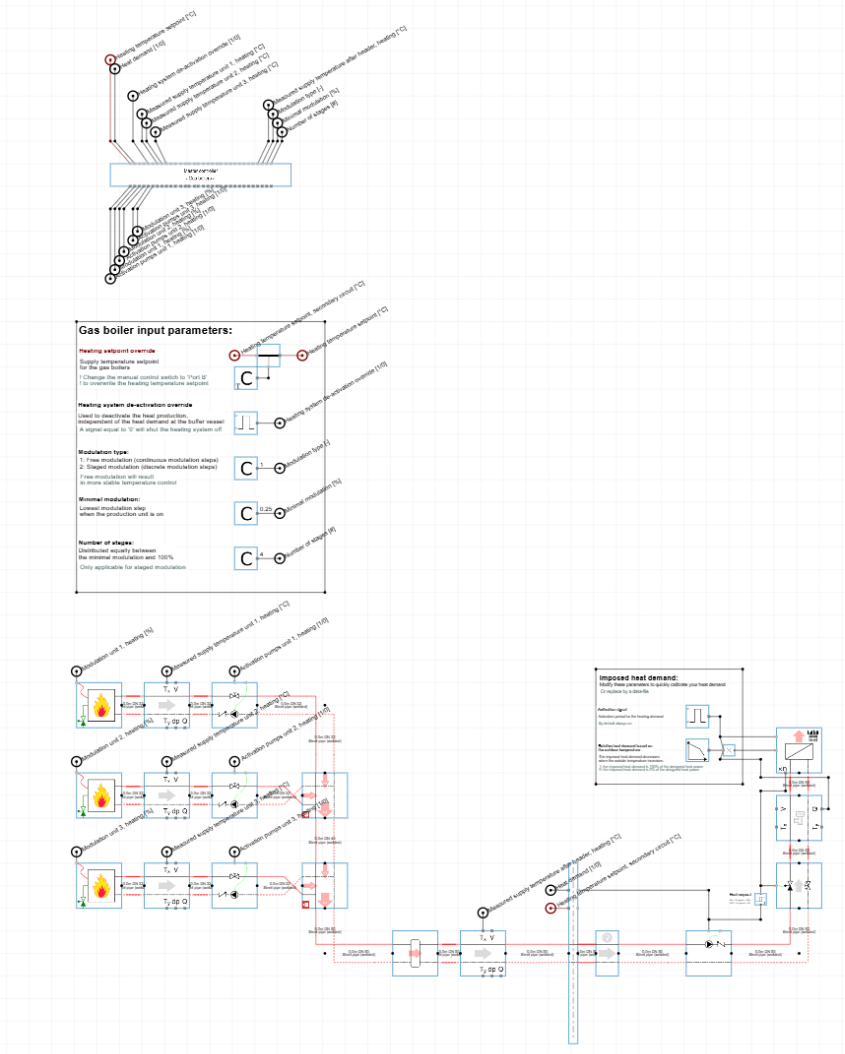
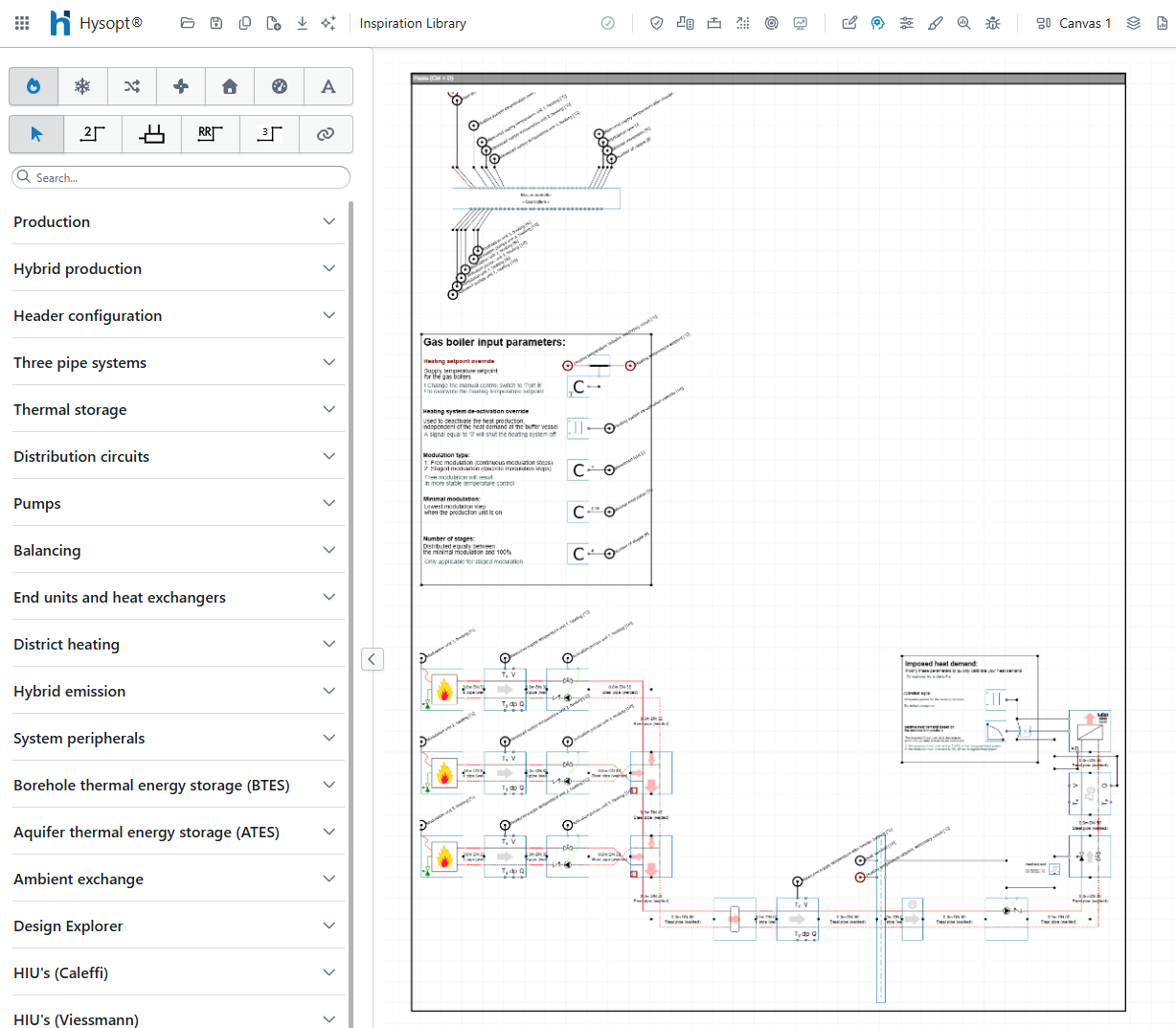
For each template, users can choose Preview or Insert. The Insert button is only available when a model is already open. Preview opens the template in the Designer environment in a new tab. In preview mode, the model cannot be saved or exported directly and Hysopt calculations cannot be applied. To use the template in a project, click Copy model and save a copy in the required folder.
With Insert, the template is copied to the model canvas that is currently open. Click Paste in the top-left corner, or use Ctrl + P, to place the template in the model.
Template categories
The Hysopt Inspiration Library is updated continuously. Templates may be added, changed, or removed over time. As a result, similar templates can appear more than once, each belonging to a different generation. The current library distinguishes between three template generations: Legacy models, Guided models and Automated control.
Generation I: Legacy models
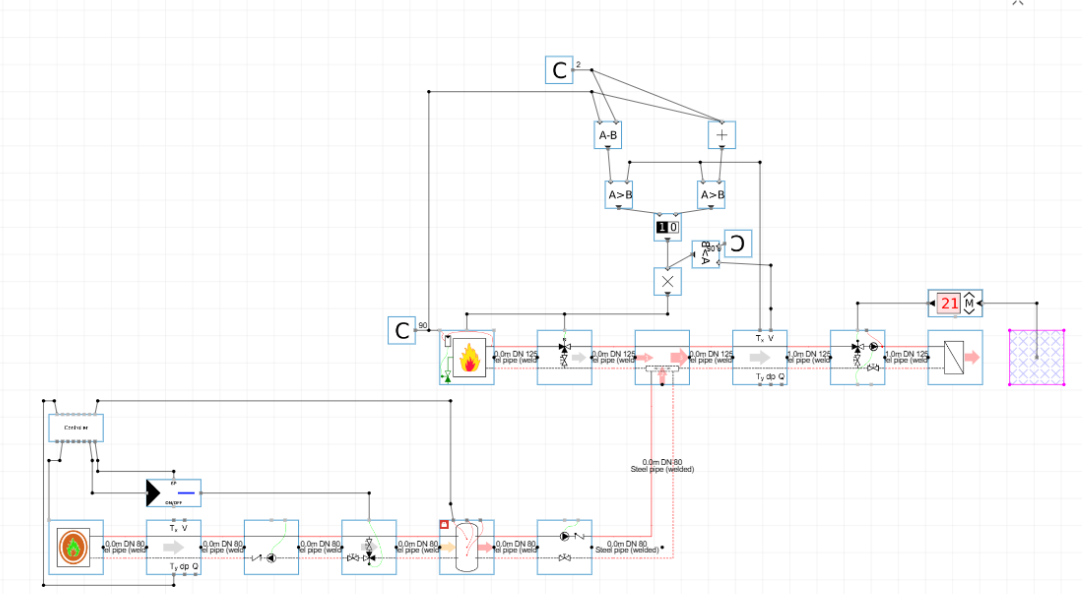
Legacy models are the oldest templates in the Hysopt Inspiration Library. They were created before smart control logic and advanced base circuits were introduced. These templates may therefore contain outdated HVAC concepts or control strategies, and they are not intended for large or complex model designs.
Where possible, Legacy models are being replaced by newer-generation templates. Use a Legacy model only when no suitable Guided model or Automated control template is available.
Legacy models are marked with the red Legacy models tag.
More information on Legacy models and their control strategy can be found at Control strategies in the inspiration library - Legacy .
Generation II: Guided models
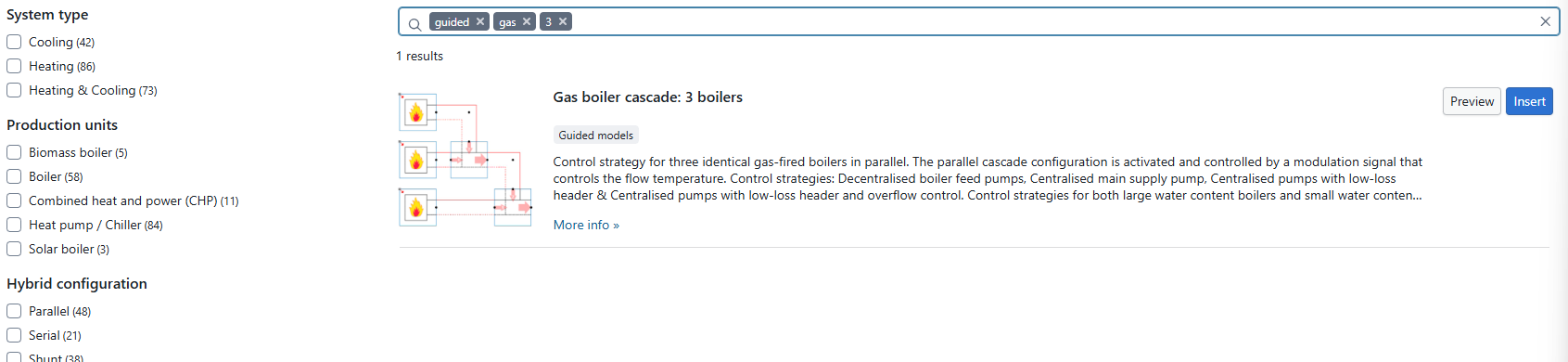
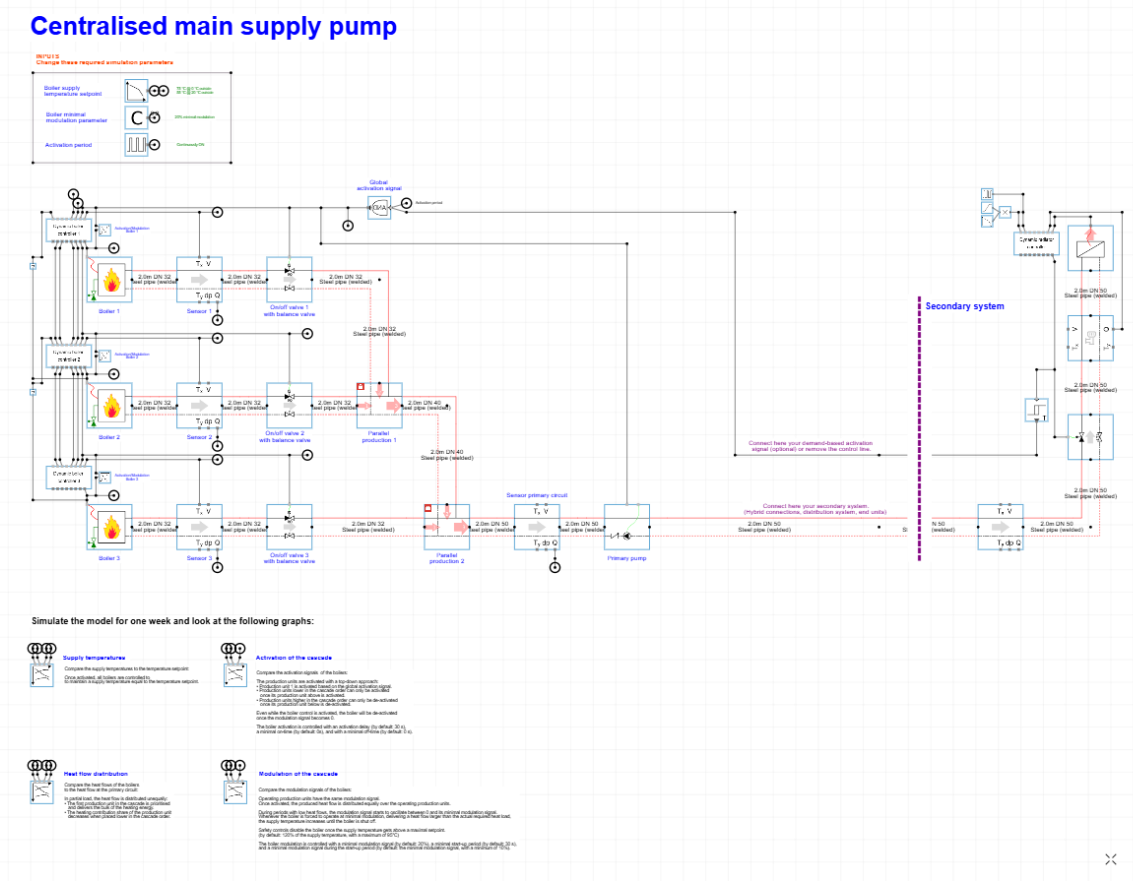
Guided models are newer than Legacy models and contain more advanced control logic. They were created to guide users through different configurations of a selected HVAC concept. These templates often include additional system information and graphs that explain the HVAC principles and compare alternative concepts.
Guided models are useful for exploring design concepts without building the model from scratch. However, they were created before the latest smart control logic and advanced base circuits were introduced. For new projects, first check whether an Automated control version of the template is available.
Guided models are marked with the grey Guided models tag.
Generation III: Automated control
Automated control models are the current state-of-the-art templates in the Hysopt Inspiration Library. They are modular templates with autonomous control logic and can be connected to each other as grouped building blocks. This makes it possible to build large and complex models efficiently.
These templates are robust, user-friendly and require only limited input from the user. They are designed for users who want to set up models quickly and run simulations and analyses with confidence. Automated control models include advanced base circuits and smart control logic to support simulation and interpretation of the results.
For new projects, always check first whether an Automated control version of the required template is available.
Automated control models are marked with the yellow Automated control tag. More information on the Automated control models & their control strategy can be found here: Advanced control logic for Generation III templates within the Hysopt Inspiration Library.